AI Configuration
Connect AI providers, configure model preferences, and manage embeddings for your account or organization.
Fabric AI supports 20+ AI providers. Configure your preferred providers, set model preferences per task type, and manage embeddings for document search.
All model selection is driven by Fabric's AI model catalog, which includes 50+ canonical models with provider mappings and task defaults. No hardcoded fallbacks are used.
Provider Categories
AI Gateways
Gateways provide unified access to multiple models through a single API key:
| Gateway | Description |
|---|---|
| Vercel Gateway | Route to multiple providers via Vercel AI |
| OpenRouter | Access 100+ models through one API |
| Cloudflare AI | Edge-optimized AI inference |
Direct Providers
Connect directly to a specific AI vendor:
| Provider | Key Models |
|---|---|
| OpenAI | GPT-4o, GPT-4o-mini, o1 |
| Anthropic | Claude Sonnet, Claude Opus |
| Groq | Llama 3.3, Mixtral (fast inference) |
| Together AI | Open-source models at scale |
| DeepSeek | DeepSeek R1, DeepSeek V3 |
| Cohere | Command R+, Embed |
| Mistral AI | Mistral Large, Codestral |
| Fireworks | Fast open-source inference |
| Perplexity | Search-augmented models |
| XAI | Grok models |
| Cerebras | Ultra-fast inference |
| Replicate | Open-source model hosting |
| Hugging Face | Community model hub |
Cloud Providers
Enterprise cloud AI services:
| Provider | Description |
|---|---|
| Azure AI Foundry | Microsoft Azure-hosted models |
| AWS Bedrock | Amazon-hosted models |
| Google Vertex AI | Google Cloud-hosted models |
| Databricks | Databricks Foundation Model APIs and serving endpoints |
Parlume, Fabric's voice agent for Teams meetings, speaks through your organization's Azure AI Foundry, OpenAI or Vercel AI Gateway key. See Voice providers for which one gives which voice.
Remote & Subscription Agent Bridges
Connect Fabric Agents Remote Server or Fabric Agents Desktop on either the Organization or Personal tab to route AI chat, Advisor, document generation, and coding runs through your subscription harnesses (ChatGPT Plus/Pro / Codex, Claude Max, Cursor Pro, Factory Droid, Kimi Code, and Grok CLI) or a self-hosted OpenAI-compatible /v1 server (Ollama, vLLM, LM Studio) with zero per-token API cost:
| Bridge | Scope | Description |
|---|---|---|
| Fabric Agents Remote Server | Personal or Organization | Connects to a personal (http://127.0.0.1:9100/v1) or shared organization (https://agents.example.com/v1) fabric-agent-server runtime or any OpenAI-compatible /v1 endpoint. |
| Fabric Agents Desktop | Personal or Organization | Routes AI requests through your local Fabric Agents Desktop bridge (http://127.0.0.1:4318/v1) and launches coding sessions via fabricagents://. |
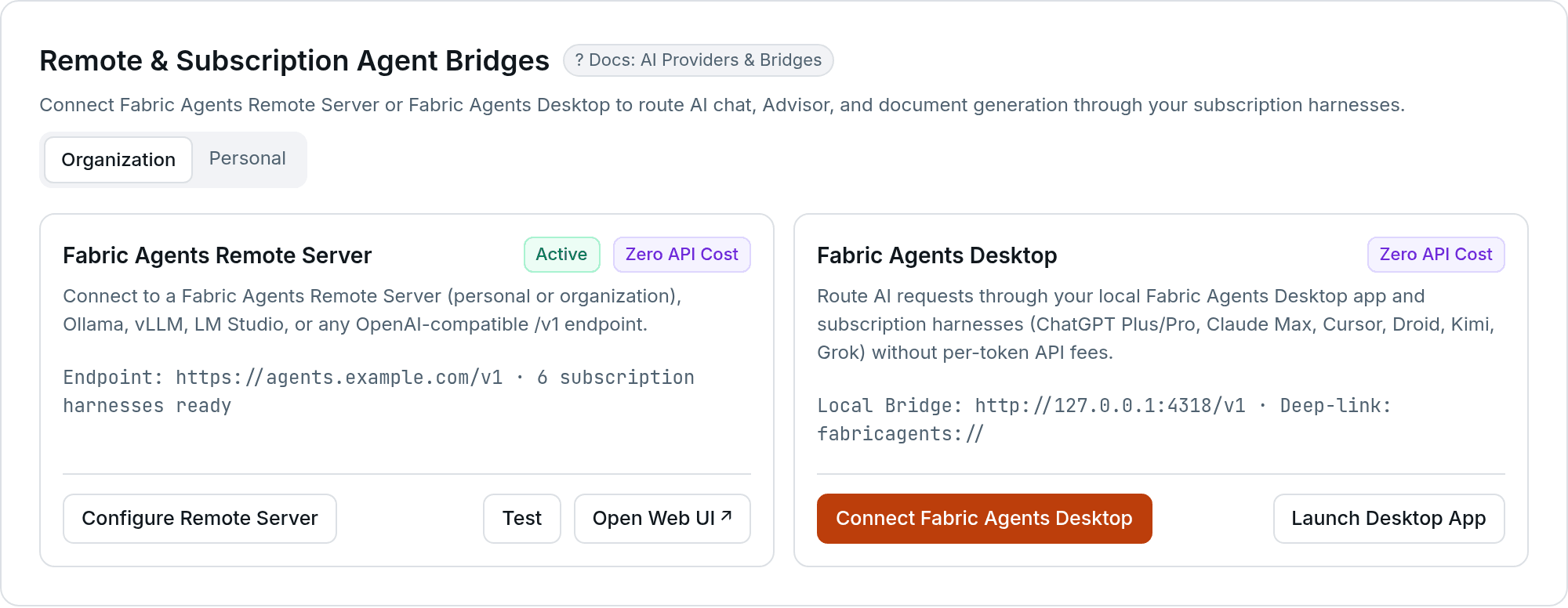
For delegating repository coding tasks and viewing the live embedded Fabric Agents Remote Server Web UI inside the portal, see Delegating Coding Runs to Fabric Agents.
Setting Up a Provider
Navigate to AI Providers
Go to Settings → AI Providers in the left sidebar.
Select a Provider
Click on the provider you want to configure.
Enter Your API Key
Provide your API key (and base URL if needed, e.g., for Azure deployments). API keys are encrypted before storage.
Test the Connection
Click Test Connection to verify your credentials. The test shows latency and confirms the provider is reachable.
Save and Set as Default
Save the configuration. Optionally set it as your default provider — this is the fallback when no specific model override is set.
Organization and Personal Keys
Settings → AI Providers has two tabs:
- Organization — the keys the whole organization runs on. Organization admins configure them; everyone else sees them read-only.
- Personal — your own keys, and your own ChatGPT plan. Every member can manage this tab.
A personal key is a fallback. Fabric uses it only when the organization has no usable key of its own, and the work it serves is billed to you. While that is the case, Fabric shows a notice saying your work in that organization runs on your personal key. A ChatGPT plan you connect on the Personal tab serves your own work and takes precedence over any key.
When the ChatGPT plan is spent
Where your organization uses ChatGPT plans, your own work tries these in order, as Settings → AI Models shows:
- your own ChatGPT plan;
- the organization's shared ChatGPT accounts;
- organization API billing, the organization's own key;
- your personal key, if you opted one in.
The fourth step is opt-in, per key. On the Personal tab, turn on Use when the ChatGPT plan is spent on one of your keys. Once every plan serving your work is spent, your chats, the Advisor and the generation you start run on that key instead of stopping, billed to you. It applies only where the organization would otherwise stop your work: its setting for people's own work is Stop and show the reset time, or it has no key for chat and generation. Under Use API billing with a key of its own, the organization's key is used as before.
- Background, scheduled and bulk work never runs on a personal key.
- An Embeddings only key cannot be opted in.
- With several keys opted in, the Default key is used, otherwise the most recently updated one.
- A reply that used your key says so under it, with the plans' reset time. When your work stops because the plan is spent and no key is opted in, the message links to the Personal tab.
AI Models shows only your own key for this step, never another member's.
Model Preferences
How Model Resolution Works
When Fabric needs an AI model (for chat, document generation, etc.), it follows this priority:
Task Types
Set different models for different types of work:
| Task Type | Use Case | Recommended |
|---|---|---|
| Simple | Quick tasks — titles, summaries, labels | Fast, cheap model (e.g., GPT-4o-mini) |
| Complex | Document generation, analysis | High-quality model (e.g., GPT-4o) |
| Chat | Conversational AI | Balanced model (e.g., Claude Sonnet) |
| Tool Calling | Function calling, MCP tools | Tool-capable model (e.g., GPT-4o) |
| Reasoning | Deep analysis, multi-step logic | Reasoning model (e.g., o1, DeepSeek R1) |
| Embedding | Vector generation for document search | Embedding model (e.g., text-embedding-3-small) |
Setting Model Preferences
- Go to Settings → AI Providers
- Scroll to Model Preferences
- Select a task type
- Choose your preferred model from the catalog
- Save
Organization Preferences
Organization admins can set org-level model preferences:
- Switch to your organization context
- Go to Settings → AI Providers
- Set org-level defaults
Organization preferences apply to all members unless a member has their own personal override.
Embedding Configuration
Embeddings are required for document search and RAG features. Not all providers support embeddings.
Embedding-Capable Providers
- OpenAI (text-embedding-3-small, text-embedding-3-large)
- Azure AI Foundry
- Google Vertex AI
- Cohere (embed-english-v3.0)
- Together AI
- Fireworks
- Mistral AI
Setting an Embedding Provider
- Configure the provider with an API key (if not already done)
- Click Set as Embedding Provider
- The embedding provider is used for all document processing and RAG retrieval
Configuration Status
The settings page shows a visual overview:
- Which providers are configured
- Which provider is the default
- Which provider handles embeddings
- Warnings when required providers are missing
Gateway Sub-Provider Management
When using a gateway (e.g., Vercel Gateway or OpenRouter), you can enable or disable specific sub-providers:
- Configure the gateway with your API key
- Expand the Enabled Providers section
- Toggle individual providers on or off
- Only enabled sub-providers appear in model selection
Cost of gateway calls
Settings → AI Usage records every model call with its cost. A call through Vercel Gateway is first recorded with an estimate. Within a few minutes Fabric replaces the estimate with the cost Vercel billed, looked up with the same organization or personal key that made the call.
When the gateway reaches a model with your own provider key (BYOK), the provider bills you directly, and the recorded cost includes that charge as Vercel reports it. A call keeps its estimate if Vercel reports no cost for it within six hours.
Best Practices
- Always set a default provider — This ensures AI features work even without specific overrides
- Configure embeddings — Required for document upload, RAG, and search features
- Use gateways for flexibility — Gateways let you switch models without changing code
- Set task-specific models — Use fast models for simple tasks and quality models for complex work
- Test connections — Verify credentials before relying on a provider