Release Notes Newsletter
Email stakeholders an AI-curated summary of the user-facing features each release ships, with an optional review step and images.
The release notes newsletter tells people outside your team what changed. Fabric reads the releases in the project's connected repositories, picks the major user-facing features, and writes a short summary for each one. It can send on a schedule or when you click Send now, and it can hold each issue for an admin to check first.
You set it up per project under Settings → Newsletter.
Set it up
- Connect at least one repository under Settings → Development. The newsletter reads releases from the project's active repository connections.
- Open Settings → Newsletter and add subscribers under Audience. You can paste several email addresses at once, separated by spaces, commas or new lines. Turn on Send to entire organization to add everyone in the organization before each send. People who unsubscribed stay unsubscribed.
- Choose the Cadence, Day of week and Send hour (UTC), then turn on Enable newsletter. Without it, the newsletter sends only when you click Send now.
| Setting | What it does |
|---|---|
| Lookback window (days) | The minimum days of history each send covers. Leave it blank to send only what is new since the last send. A value larger than your cadence includes releases that were already announced. |
| Detail level | How much each summary says. Standard is the default. |
| Delivery destination | Where the newsletter goes. Email sends to subscribers. |
If Fabric finds no major features, nobody is emailed and the send history shows why.
Review before sending
Turn on Require review before sending to hold each newsletter until a project admin approves it. When a newsletter is held, reviewers get an in-app notification and an email (when mail is configured). You can also tick Teams or Slack channels under Review alert channels to post the alert there.
Click Review on the held newsletter to open it. In the review dialog you can:
- untick a highlight to leave it out of the email;
- drag a highlight to change its order within its release;
- click Approve & send to deliver it now, or Reject to discard it.
A held newsletter that nobody reviews for 14 days is marked Review expired the next time a send runs, and it is never delivered.
Add images to highlights
Turn on Images in highlights to add up to two images to each highlight. You can upload images yourself in the review dialog, and Fabric can capture screenshots of your product for you.
Click Add image under a highlight and pick a PNG or JPEG file. Files up to 300 KB are used as they are. Your browser scales a larger file down to 1200 px wide and compresses it until it fits, before it uploads.
Click an image to change it:
| Control | What it does |
|---|---|
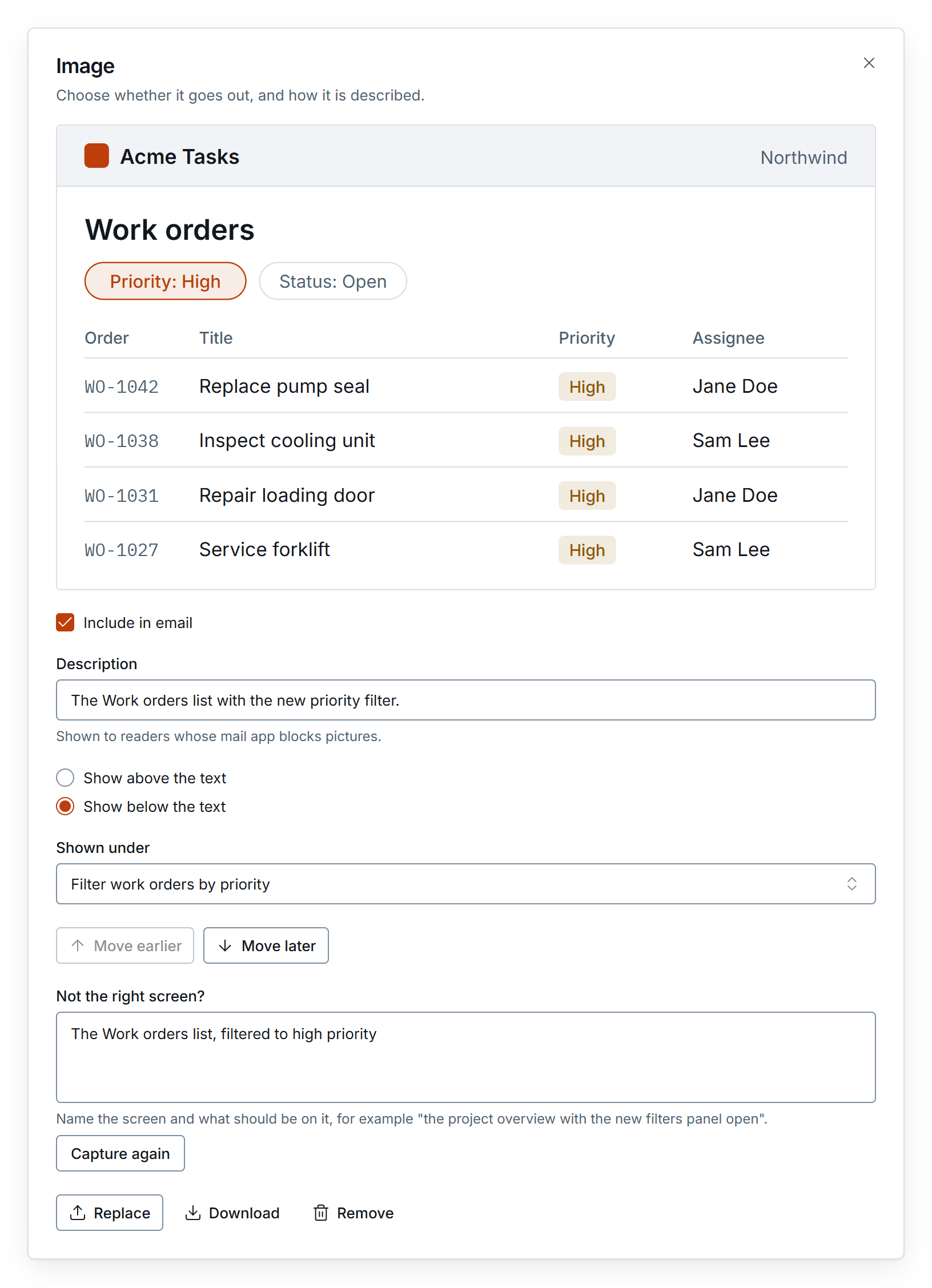
| Include in email | Untick to keep the image with the highlight but leave it out of this email. |
| Description | Text shown to readers whose mail app blocks pictures. |
| Shown under | Moves the image to another highlight. |
| Move earlier, Move later | Changes the order of the images under one highlight. |
| Not the right screen? | Describes the screen again and captures a new screenshot. Shown for captured screenshots only. |
| Replace, Download, Remove | Swap the file, save a copy, or delete the image. |
The footer counts how many images are included, and the approve button names that number. When you reject a newsletter, its review expires, or it fails or is skipped, Fabric deletes its images. A sent newsletter keeps only the images in the email.
To take the images out of a newsletter that was already sent, click Remove published images on its row in Send & history. The images disappear from the delivered emails and from the release notes archive. This cannot be undone.
Capture screenshots automatically
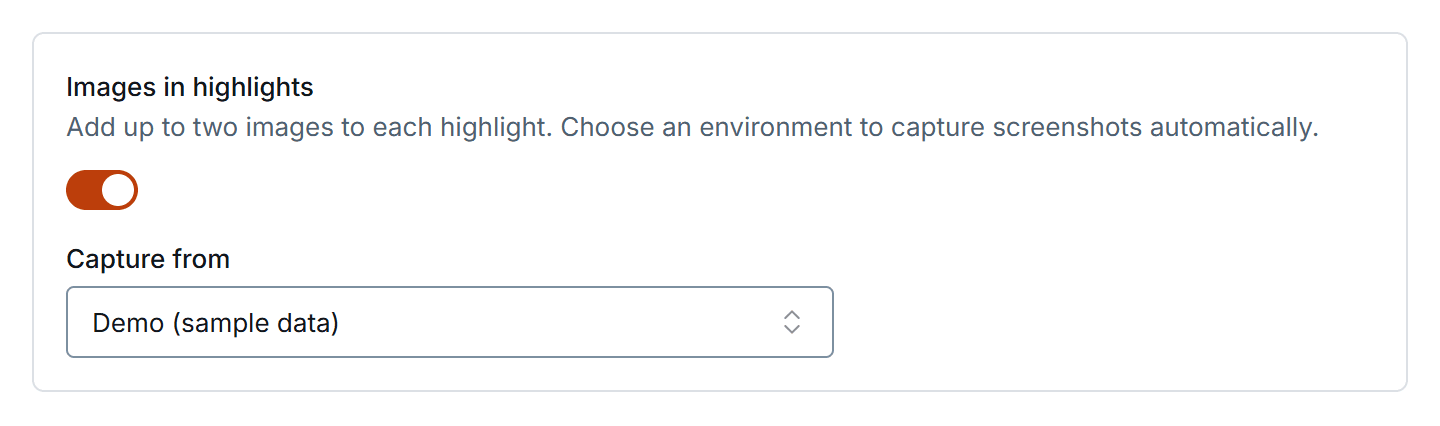
Under Images in highlights, choose an environment in Capture from. Use an environment that shows sample data only: its screenshots go to everyone who receives the newsletter. Fabric asks you to confirm this when you choose the environment, and production environments are not offered. If someone later changes that environment's address, sign-in page, type or credential, Fabric clears the choice and you confirm again. Environments are set up under Settings → Environments, and Fabric signs in with the credentials saved there. Give it an account of its own that sees only that sample data and has no admin rights: captures never open administration or settings screens, and an account without access to them keeps it that way even if the app changes.
When a newsletter is written, Fabric decides which highlights change something a reader can see, using the files each release changed, the pull requests its notes name, and the work items behind them. For up to eight of those highlights, it opens the environment in a browser, finds the screen that shows the change, and captures it. It only looks: it never clicks anything that saves, sends or deletes data. When it cannot find the screen, it gives up and records why instead of capturing a different one. Before each capture, email addresses and phone numbers on the screen are replaced with placeholders, the name of the account Fabric signed in with becomes "Jane Doe", and profile pictures, cookie banners and floating chat buttons are hidden. Fabric waits for each screen to finish loading before it reads it. A capture shows the panel or section that holds the change rather than the whole page where it can, and is taken at double resolution so its text stays sharp in the email. Screenshots are at most 1200 px wide and kept under 300 KB.
- With review turned on, captured screenshots appear in the review dialog unticked, so you choose which ones go out. A screenshot that could not be captured shows a short reason instead.
- With review turned off, captured screenshots are sent in the newsletter without review.
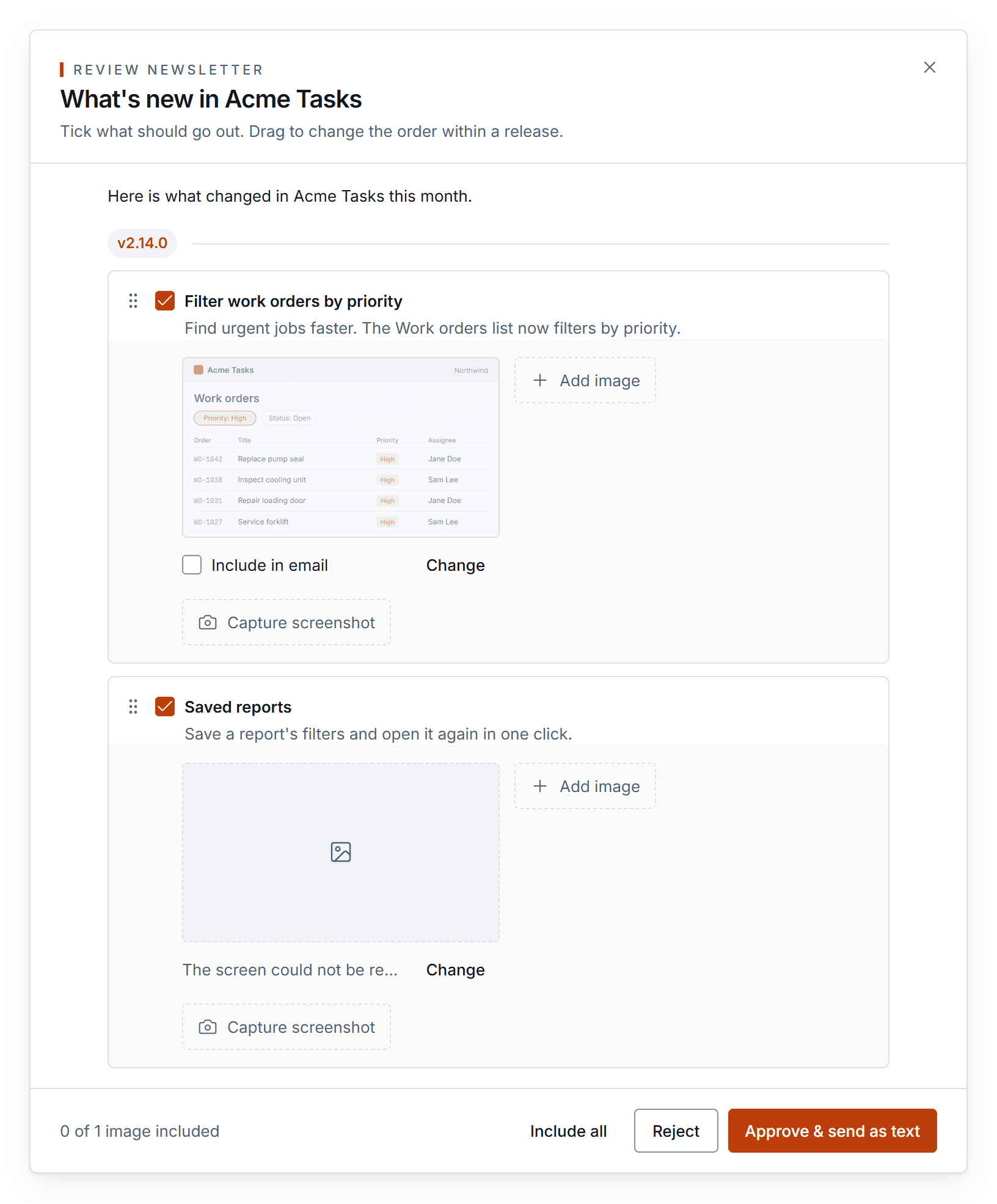
In the review dialog you can also click Capture screenshot under a highlight and describe the screen you want, or open a captured screenshot and click Capture again. A capture takes a minute or two, and the dialog updates when it finishes. When a new capture fails, the previous screenshot stays.
A capture never stops a newsletter from being sent: a highlight whose screenshot failed goes out as text. Each capture is logged as AI usage under the newsletter screenshot job.
Send history
Send & history lists every send with its trigger, status and delivery count. Click Send now to start one immediately.
| Status | Meaning |
|---|---|
| Preparing… | Fabric is writing a newsletter that will be held for review. |
| Awaiting review | Held until an admin approves or rejects it. |
| Sending…, Sent, Partially sent, Failed | Delivery progress and outcome. |
| Rejected, Review expired | Not delivered. |
| No new releases, No major updates | Nothing new to announce, so nobody was emailed. |
| Scan incomplete | Fabric could not read every connected repository, so it sent nothing. A partial scan could miss a release. The row lists the repositories that failed and the error each returned. |
| No subscribers | The audience is empty. |
| Repositories disconnected | The project has no active repository connection. |
Fixing a scan that is incomplete. The reason under Scan incomplete names the repository. Give the connected account access to it, or remove the repository from the project under Settings → Development, then click Send now. If a repository's credentials have expired, the newsletter settings show a Reconnect repositories banner.
Embed on your site
Under Embed, turn on Enable the embeddable widget to publish the project's release notes at a public widget URL. Style the widget to match your site, then paste the snippet into your HTML.
Project Artifacts
Pages Fabric Agent writes for one project, kept on the project's Artifacts tab and opened by its members.
Pages
Pages Fabric Agent writes for your organization from a description, shared with everyone in it by default, that can keep what people enter, hold files, ask the model and act through Fabric.